How to Structure a JavaScript Project in 2026 and the Folder Architecture That Scales From Side Project to 500-File Production Application
📧 Subscribe to JS Pulse
The JavaScript job market in one email: real numbers from 600+ job listings, 5 jobs worth applying to, and what actually changed. Join 9,000+ developers.
I opened a codebase last month that had 47 files in the root src/ directory. Components, utilities, hooks, types, API calls, constants, and test files all living in one flat folder. The developer who built it said "I will organize it later." That was 8 months ago. The project now has 200+ files and nobody on the team can find anything without using the search function. Every new feature takes 30% longer because developers spend more time navigating than coding.
This is the most common JavaScript project failure mode I see in 2026. Not a wrong framework choice. Not a bad algorithm. Bad folder structure. It does not show up in Lighthouse scores or error logs. It shows up in developer velocity: how fast your team ships features, how quickly a new hire becomes productive, and how confidently you can refactor code without breaking unrelated parts of the application.
I run jsgurujobs.com and review project structures from JavaScript developers regularly. The pattern is consistent: projects that start with a clear folder architecture scale smoothly to 500+ files. Projects that start with "I will organize later" hit a wall at 50-100 files and never recover without a painful reorganization.
This article shows you the folder structures that actually work in production React, Next.js, and Node.js applications in 2026. Not theoretical patterns from blog posts written in 2018 for projects that never grew past 30 files. The structures that real teams with 3-15 developers use to ship code daily without stepping on each other's toes, without merge conflicts on unrelated features, and without new hires spending their first week just figuring out where things live.
Why JavaScript Project Structure Matters More in 2026 Than in Previous Years
Three things changed in 2026 that make project structure more important than ever.
First, TypeScript 6.0 shipped with ESM as the default module system and support for subpath imports with #/. This means the way you organize files directly affects your import paths, your build configuration, and your IDE experience. A bad folder structure with TypeScript 6.0 creates import paths like ../../../components/ui/Button that are painful to read and painful to refactor. A good structure with subpath imports creates #/components/ui/Button regardless of where the importing file lives.
Second, AI coding tools generate code faster than developers can organize it. Cursor, Copilot, and Claude Code can produce 10 files in 5 minutes. If you do not have a clear structure for where each file goes, AI-generated code ends up scattered across your project with no consistent pattern. The developers who use AI tools effectively without losing code quality are the ones who established a clear project structure before they started prompting.
Third, the layoff wave of 2026 means smaller teams maintaining the same codebases. When Oracle cuts 30,000 people and Meta cuts thousands more, the remaining developers inherit code they did not write. A clear folder structure is the difference between "I can understand this project in a day" and "I need two weeks to figure out where anything lives."
On jsgurujobs.com, "clean code architecture" and "project organization" appear in 25% of senior role descriptions. Companies have learned through painful experience that bad structure costs significantly more than bad code. Bad code can be rewritten one function at a time during normal feature development. Bad structure requires reorganizing the entire project, which means stopping feature development for days or weeks, creating massive pull requests that nobody can review effectively, and risking regression bugs from thousands of changed import paths.
The Two Approaches to JavaScript Folder Structure That Actually Work
Every project structure debate comes down to two approaches: layer-based and feature-based. Understanding both and knowing when to use each is the key decision.
Layer-Based Structure and When It Works
Layer-based structure organizes files by their technical role: all components in one folder, all hooks in another, all utilities in a third.
src/
  components/
    Button.tsx
    Modal.tsx
    DataTable.tsx
    UserAvatar.tsx
    JobCard.tsx
  hooks/
    useAuth.ts
    useDebounce.ts
    usePagination.ts
    useJobSearch.ts
  utils/
    formatDate.ts
    validateEmail.ts
    calculateSalary.ts
  types/
    user.ts
    job.ts
    auth.ts
  api/
    users.ts
    jobs.ts
    auth.ts
This works for small projects (under 30-50 files) because every folder is small enough to scan visually. You know that all components are in components/, all hooks are in hooks/, and all API calls are in api/. The mental model is simple.
It breaks down at 100+ files because the components/ folder becomes a flat list of 40 unrelated components. The hooks/ folder has authentication hooks next to pagination hooks next to animation hooks. Finding related files requires jumping between 4-5 folders because the code for a single feature (like job search) is spread across components/JobSearch.tsx, hooks/useJobSearch.ts, api/jobs.ts, types/job.ts, and utils/formatJobData.ts. When a new developer needs to understand how job search works, they have to piece together files from five different directories. When you need to delete the job search feature, you have to hunt down every file related to it scattered across the entire project, and you will inevitably miss one.
Feature-Based Structure and Why It Scales
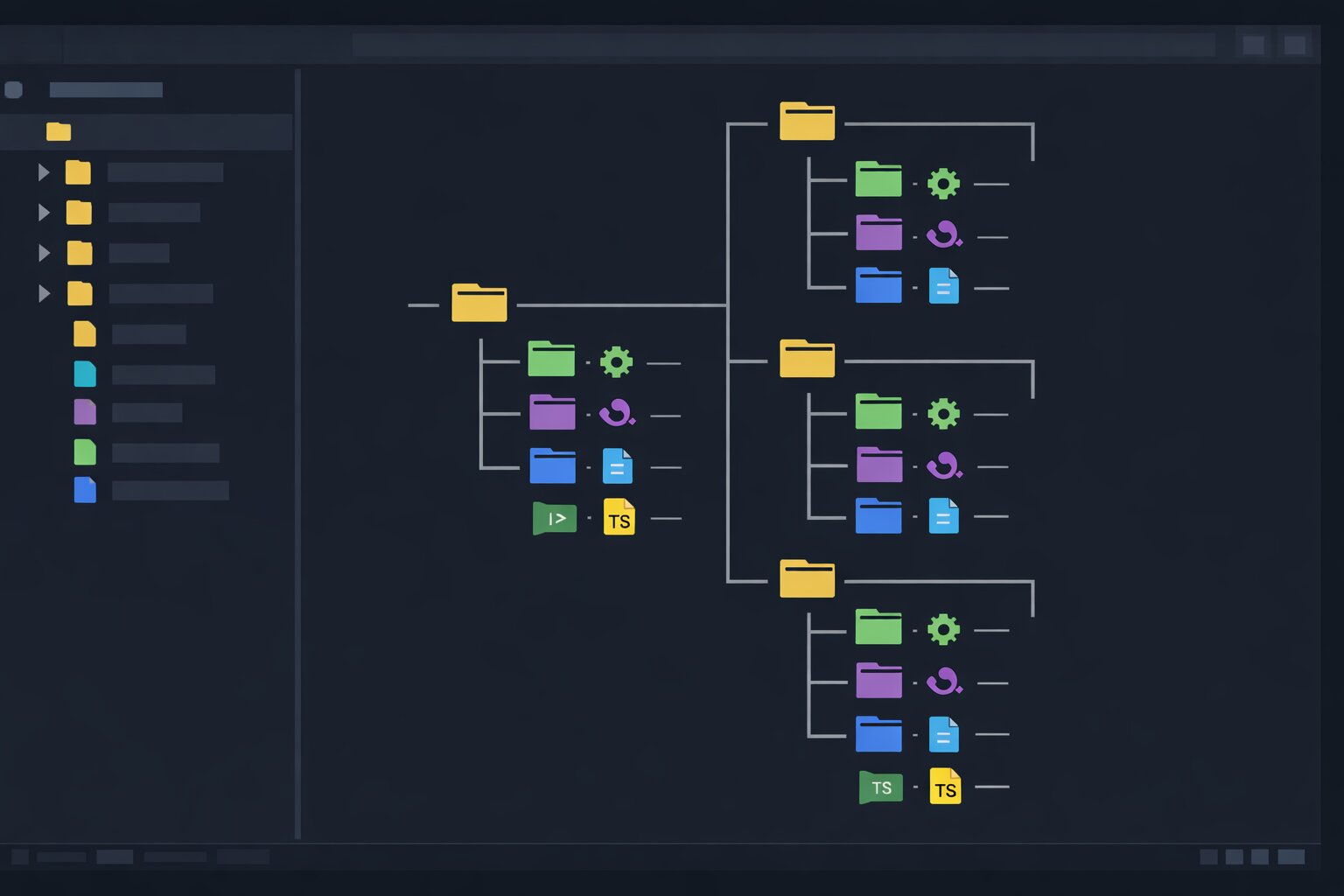
Feature-based structure organizes files by what they do, not what they are. All files related to job search live in one folder, regardless of whether they are components, hooks, or utilities.
src/
  features/
    auth/
      components/
        LoginForm.tsx
        SignUpForm.tsx
        PasswordReset.tsx
      hooks/
        useAuth.ts
        useSession.ts
      api/
        auth.ts
      types/
        auth.ts
      index.ts
    jobs/
      components/
        JobCard.tsx
        JobList.tsx
        JobFilter.tsx
        JobDetail.tsx
      hooks/
        useJobSearch.ts
        useJobFilter.ts
      api/
        jobs.ts
      types/
        job.ts
      utils/
        formatSalary.ts
      index.ts
    profile/
      components/
        ProfileEditor.tsx
        AvatarUpload.tsx
      hooks/
        useProfile.ts
      api/
        profile.ts
      types/
        profile.ts
      index.ts
  shared/
    components/
      Button.tsx
      Modal.tsx
      DataTable.tsx
      LoadingSpinner.tsx
    hooks/
      useDebounce.ts
      useLocalStorage.ts
      useMediaQuery.ts
    utils/
      formatDate.ts
      validateEmail.ts
    types/
      common.ts
Each feature folder is a self-contained module. When you work on job search, you open features/jobs/ and everything you need is there. When a new developer joins the team, they can understand the job search feature by reading one folder instead of hunting through five. When you delete a feature, you delete one folder instead of finding and removing files scattered across the entire project.
The shared/ folder contains code used by multiple features: generic UI components, utility functions, and common types. The rule is simple: if a file is used by only one feature, it lives in that feature's folder. If it is used by two or more features, it moves to shared/.
For developers who understand JavaScript application architecture and why system design skills matter, feature-based structure is the folder-level expression of modular architecture. Each feature is a module with a clear public API (the index.ts barrel export) and private implementation details (everything else in the folder).
The index.ts Barrel Export Pattern and How to Use It Without Destroying Performance
Each feature folder should have an index.ts that exports the public API of that feature. Other features import from the barrel, never from internal files directly.
// features/jobs/index.ts
export { JobCard } from './components/JobCard';
export { JobList } from './components/JobList';
export { JobFilter } from './components/JobFilter';
export { useJobSearch } from './hooks/useJobSearch';
export { useJobFilter } from './hooks/useJobFilter';
export type { Job, JobFilter as JobFilterType } from './types/job';
// features/profile/components/ProfilePage.tsx
// GOOD: import from the barrel
import { JobCard } from '#/features/jobs';

// BAD: import from internal file
import { JobCard } from '#/features/jobs/components/JobCard';
The barrel creates a clear boundary between features. If the jobs team renames an internal file or restructures their components folder, nothing outside the jobs feature breaks because the barrel export stays the same.
The Tree-Shaking Warning
Barrel exports can hurt bundle size if your bundler does not tree-shake properly. If index.ts re-exports 20 components and you import only one, a naive bundler includes all 20 in the final bundle, adding hundreds of kilobytes of unused code. Modern bundlers (Vite with Rollup, webpack 5 with sideEffects flag, and Next.js built-in optimization) handle this correctly and only include the code you actually import, but you should verify this by checking your bundle size before and after adding barrel exports.
Add "sideEffects": false to your package.json to tell the bundler that all files are safe to tree-shake.
{
    "name": "my-app",
    "sideEffects": false
}
If you use CSS imports in your components, mark CSS files as having side effects:
{
    "sideEffects": ["*.css", "*.scss"]
}
Subpath Imports With #/ and How TypeScript 6.0 Changes Project Navigation
TypeScript 6.0 added support for subpath imports starting with #/. This replaces the old baseUrl + paths approach for import aliases and is the recommended way to create clean import paths in 2026.
{
    "name": "my-app",
    "type": "module",
    "imports": {
        "#/*": "./src/*"
    }
}
// Before: relative path hell
import { Button } from '../../../shared/components/Button';
import { useAuth } from '../../../features/auth/hooks/useAuth';
import { formatDate } from '../../../shared/utils/formatDate';

// After: clean subpath imports
import { Button } from '#/shared/components/Button';
import { useAuth } from '#/features/auth/hooks/useAuth';
import { formatDate } from '#/shared/utils/formatDate';
The path is always the same regardless of where the importing file lives. No more counting ../ levels. No more breaking imports when you move a file to a different folder depth.
Combined with barrel exports, the imports become even cleaner:
import { Button, Modal, DataTable } from '#/shared/components';
import { useAuth } from '#/features/auth';
import { JobCard, useJobSearch } from '#/features/jobs';
This is not just a cosmetic improvement. Clean imports make code review faster because reviewers can see at a glance which features a file depends on. They make refactoring safer because the import path does not encode the file's location relative to the imported file. And they make AI-generated code more consistent because you can tell Cursor "always import from #/features/[name]" and every generated file follows the same pattern.
The React and Next.js Project Structure That Production Teams Actually Use
Here is the complete folder structure for a production Next.js application with the App Router, based on patterns I see in codebases at companies posting jobs on jsgurujobs.com.
my-app/
  src/
    app/
      layout.tsx
      page.tsx
      loading.tsx
      error.tsx
      not-found.tsx
      (auth)/
        login/
          page.tsx
        signup/
          page.tsx
      dashboard/
        layout.tsx
        page.tsx
        settings/
          page.tsx
      jobs/
        page.tsx
        [id]/
          page.tsx
    features/
      auth/
        components/
          LoginForm.tsx
          SignUpForm.tsx
        hooks/
          useAuth.ts
          useSession.ts
        actions/
          login.ts
          signup.ts
        types/
          auth.ts
        index.ts
      jobs/
        components/
          JobCard.tsx
          JobList.tsx
          JobFilter.tsx
          JobDetail.tsx
        hooks/
          useJobSearch.ts
        actions/
          createJob.ts
          searchJobs.ts
        types/
          job.ts
        utils/
          formatSalary.ts
        index.ts
    shared/
      components/
        ui/
          Button.tsx
          Input.tsx
          Modal.tsx
          Select.tsx
          Badge.tsx
        layout/
          Header.tsx
          Footer.tsx
          Sidebar.tsx
        feedback/
          LoadingSpinner.tsx
          ErrorBoundary.tsx
          EmptyState.tsx
      hooks/
        useDebounce.ts
        useLocalStorage.ts
        useMediaQuery.ts
        usePrevious.ts
      utils/
        formatDate.ts
        formatCurrency.ts
        validateEmail.ts
        cn.ts
      types/
        common.ts
        api.ts
      constants/
        routes.ts
        config.ts
    lib/
      db.ts
      redis.ts
      auth.ts
      email.ts
  public/
    images/
    fonts/
  tests/
    e2e/
    integration/
Why the app/ Folder Only Contains Route Files
In Next.js App Router, the app/ directory defines the routing structure. Each page.tsx file is a route. The actual component logic, hooks, and data fetching live in features/. The page files are thin wrappers that compose feature components.
// app/jobs/page.tsx - thin wrapper
import { JobList, JobFilter } from '#/features/jobs';

export default function JobsPage() {
    return (
        <div className="container mx-auto">
            <h1>JavaScript Developer Jobs</h1>
            <JobFilter />
            <JobList />
        </div>
    );
}
// features/jobs/components/JobList.tsx - actual logic
'use client';

import { useJobSearch } from '../hooks/useJobSearch';
import { JobCard } from './JobCard';
import { LoadingSpinner } from '#/shared/components/feedback/LoadingSpinner';

export function JobList() {
    const { jobs, loading, error } = useJobSearch();

    if (loading) return <LoadingSpinner />;
    if (error) return <div>Failed to load jobs</div>;

    return (
        <div className="grid gap-4">
            {jobs.map(job => (
                <JobCard key={job.id} job={job} />
            ))}
        </div>
    );
}
This separation means the routing structure and the feature logic evolve independently of each other. You can rearrange routes, rename URL paths, or add new pages without touching any feature code. You can refactor feature components, change data fetching strategies, or replace entire feature implementations without changing the URL structure or the routing configuration.
The lib/ Folder for Infrastructure Code
The lib/ folder contains code that connects to external services: database clients, cache connections, authentication providers, and email services. These are not features and not shared components. They are infrastructure.
// lib/db.ts
import { PrismaClient } from '@prisma/client';

const globalForPrisma = global as unknown as { prisma: PrismaClient };

export const db = globalForPrisma.prisma || new PrismaClient();

if (process.env.NODE_ENV !== 'production') {
    globalForPrisma.prisma = db;
}
Features import from lib/ when they need database access or external service connections. The lib/ folder should have very few files (typically 3-8) and each file should export a single client or service instance.
The Node.js Backend Project Structure for APIs and Services
Backend JavaScript projects have different structure needs than frontend projects. There are no components or hooks, but there are routes, controllers, services, middleware, and data access layers.
my-api/
  src/
    routes/
      auth.routes.ts
      jobs.routes.ts
      users.routes.ts
      index.ts
    controllers/
      auth.controller.ts
      jobs.controller.ts
      users.controller.ts
    services/
      auth.service.ts
      jobs.service.ts
      users.service.ts
      email.service.ts
    repositories/
      user.repository.ts
      job.repository.ts
    middleware/
      auth.middleware.ts
      validate.middleware.ts
      rateLimit.middleware.ts
      errorHandler.middleware.ts
    types/
      auth.ts
      job.ts
      user.ts
      express.d.ts
    utils/
      logger.ts
      hash.ts
      token.ts
    config/
      database.ts
      redis.ts
      env.ts
    app.ts
    server.ts
The Route-Controller-Service Pattern
Each HTTP request flows through three layers: route (defines the endpoint), controller (handles the request/response), and service (contains the business logic).
// routes/jobs.routes.ts
import { Router } from 'express';
import { JobsController } from '#/controllers/jobs.controller';
import { authMiddleware } from '#/middleware/auth.middleware';
import { validate } from '#/middleware/validate.middleware';
import { createJobSchema } from '#/types/job';

const router = Router();
const controller = new JobsController();

router.get('/', controller.list);
router.get('/:id', controller.getById);
router.post('/', authMiddleware, validate(createJobSchema), controller.create);

export default router;
// controllers/jobs.controller.ts
import { Request, Response } from 'express';
import { JobsService } from '#/services/jobs.service';

export class JobsController {
    private service = new JobsService();

    list = async (req: Request, res: Response) => {
        const { page, limit, search } = req.query;
        const result = await this.service.list({ page, limit, search });
        res.json(result);
    };

    create = async (req: Request, res: Response) => {
        const job = await this.service.create(req.body, req.user.id);
        res.status(201).json(job);
    };
}
// services/jobs.service.ts
import { JobRepository } from '#/repositories/job.repository';
import { Job } from '#/types/job';

export class JobsService {
    private repo = new JobRepository();

    async list(params: { page: number; limit: number; search?: string }) {
        return this.repo.findMany(params);
    }

    async create(data: Partial<Job>, userId: string) {
        return this.repo.create({ ...data, postedBy: userId });
    }
}
The controller never contains business logic. The service never touches request/response objects. The repository never knows about HTTP. Each layer has one responsibility and one reason to change. When you need to change how jobs are created (new validation, different database call), you change the service. When you need to change the API response format (add pagination metadata, rename fields), you change the controller. When you need to change the database query (optimize with an index, add a JOIN), you change the repository. No other layer is affected by each change.
This separation also makes testing dramatically simpler. You can test the service without an HTTP server by calling its methods directly with mock data. You can test the controller without a database by injecting a mock service. You can test the repository against a test database without any HTTP or business logic involvement. Each layer is independently testable because each layer has zero knowledge of the others' implementation details.
For developers preparing for JavaScript system design interviews, knowing this layered architecture and being able to explain why each layer exists is a common interview topic.
How to Handle Shared Code Between Frontend and Backend in a Monorepo
Many JavaScript projects in 2026 have a frontend and backend in the same repository. The shared code between them (types, validation schemas, utility functions) needs a clear home.
my-monorepo/
  packages/
    shared/
      types/
        job.ts
        user.ts
      validation/
        job.schema.ts
        user.schema.ts
      utils/
        formatDate.ts
        formatCurrency.ts
      package.json
    web/
      src/
        app/
        features/
        shared/
      package.json
    api/
      src/
        routes/
        controllers/
        services/
      package.json
  package.json
  turbo.json
The packages/shared/ folder contains code that both frontend and backend import. TypeScript types for API responses ensure that the frontend and backend agree on data shapes. Validation schemas (using Zod) run on both client and server. Utility functions like date formatting are used everywhere.
// packages/shared/types/job.ts
export interface Job {
    id: string;
    title: string;
    company: string;
    salary: { min: number; max: number; currency: string };
    location: string;
    remote: boolean;
    tags: string[];
    createdAt: string;
}

export interface CreateJobInput {
    title: string;
    company: string;
    salary: { min: number; max: number; currency: string };
    location: string;
    remote: boolean;
    tags: string[];
}
// packages/shared/validation/job.schema.ts
import { z } from 'zod';

export const createJobSchema = z.object({
    title: z.string().min(3).max(100),
    company: z.string().min(1),
    salary: z.object({
        min: z.number().positive(),
        max: z.number().positive(),
        currency: z.enum(['USD', 'EUR', 'GBP']),
    }),
    location: z.string(),
    remote: z.boolean(),
    tags: z.array(z.string()).max(10),
});
Both the frontend form validation and the backend API validation use the exact same schema definition. If you add a new required field to the job type, TypeScript catches every single place it needs to be updated across both applications. One source of truth for the data shape.
For teams that use Turborepo or Nx for monorepo management, this shared package pattern is the standard way to share code between applications without duplicating it.
The Naming Conventions That Prevent Chaos at Scale
File and folder naming matters more than most developers think. At 50 files, inconsistent naming is annoying. At 500 files, it is crippling.
Files Named After What They Export
Every file should be named after its primary export. JobCard.tsx exports JobCard. useAuth.ts exports useAuth. formatDate.ts exports formatDate. No exceptions. No index.tsx that exports UserProfileEditForm. No helpers.ts that exports 15 unrelated functions.
One Component Per File
React components get one file each. Not two components in one file. Not a component and its helper component in one file. One file, one component, one export. When a component grows and needs sub-components, those sub-components get their own files in the same folder.
features/jobs/components/
  JobCard.tsx          # the main card
  JobCardBadge.tsx     # badge sub-component used only by JobCard
  JobCardActions.tsx   # action buttons sub-component
  JobList.tsx          # list of job cards
  JobFilter.tsx        # filter component
Consistent Suffix Conventions
Use consistent suffixes so you can tell what a file does from its name alone. .tsx for React components. .ts for everything else. .test.ts or .test.tsx for tests. .schema.ts for validation schemas. .controller.ts, .service.ts, .repository.ts for backend layers.
Do not mix naming conventions. If one route file is auth.routes.ts, all route files must follow the [name].routes.ts pattern. If one hook is useAuth.ts, all hooks must start with use.
When to Refactor Your Project Structure and How to Do It Without Breaking Everything
The best time to establish a good structure is at the very start of the project, before the first component is built. The second best time is now, regardless of how messy the current structure is. If your project has grown organically over months or years and the structure is a mess, here is how to refactor incrementally without stopping feature development or creating a two-week code freeze.
Move One Feature at a Time
Do not reorganize the entire project in one pull request. That is a 500-file PR that nobody can review and that will have merge conflicts with every other branch. Instead, move one feature per PR. Start with the most self-contained feature (the one with the fewest dependencies on other features).
Create the features/[name]/ folder structure. Move files one by one. Update imports. Run tests after every move. When the feature is fully migrated, submit the PR. Then move the next feature.
Use Your IDE's Rename Feature
VS Code and JetBrains IDEs can rename files and update all imports automatically. Right-click a file, choose "Rename," move it to the new location, and the IDE updates every file that imports it. This is far safer than manual find-and-replace.
Add an ESLint Rule to Enforce Import Boundaries
Once you have established feature boundaries, enforce them with linting. The eslint-plugin-import package has rules that can prevent features from importing each other's internal files.
// .eslintrc.js
module.exports = {
    rules: {
        'import/no-restricted-paths': ['error', {
            zones: [{
                target: './src/features/auth',
                from: './src/features/jobs/components',
                message: 'Auth feature cannot import Jobs internal components. Use the barrel export.',
            }],
        }],
    },
};
This catches violations at lint time, before they reach code review. New developers who accidentally import from the wrong path get an immediate error with an explanation of the correct way.
The Project Structure Mistakes That Senior Developers Avoid
After reviewing hundreds of JavaScript projects, these are the structural mistakes I see most often.
The first is the "utils" junk drawer. A utils/ folder that starts with 3 clean utility functions and grows to 40 unrelated functions. The fix is moving feature-specific utilities into their feature folder and keeping shared/utils/ for genuinely generic functions used across 3+ features.
The second is premature abstraction. Creating shared/components/DataDisplay/ with a generic data display component before you have two different features that need it. The rule is simple: do not move code to shared/ until the second feature needs it. Duplication is cheaper than the wrong abstraction.
The third is deeply nested folders. src/features/jobs/components/list/items/card/actions/BookmarkButton.tsx is 7 levels deep. No folder should be more than 4 levels deep from src/. If you need more depth, your feature is too big and should be split into sub-features.
The fourth is ignoring tests in the structure. Tests should live next to the code they test, not in a separate tests/ folder at the root. JobCard.test.tsx lives next to JobCard.tsx. This makes it obvious which components have tests and which do not.
The fifth is not having a structure at all. The "flat src/" approach where every file lives in src/ with no organization. This works for 10 files. It is unusable at 50. If your project has more than 20 files in src/, it needs folders.
How to Structure Environment Configuration Across Development, Staging, and Production
Every JavaScript project needs environment-specific configuration that changes between development, staging, and production: API URLs, database connection strings, feature flags, third-party service API keys, and logging levels. Where this configuration lives in your folder structure matters for both security and long-term maintainability.
my-app/
  .env.example          # template with all variables, no real values
  .env.local            # local development (gitignored)
  .env.test             # test environment values (can be committed)
  src/
    config/
      env.ts            # typed environment variables
      features.ts       # feature flags
      routes.ts         # route constants
The config/env.ts file should validate and type all environment variables at application startup. If a required variable is missing, the application should fail immediately with a clear error message, not crash randomly when the first API call tries to use an undefined URL.
// config/env.ts
import { z } from 'zod';

const envSchema = z.object({
    DATABASE_URL: z.string().url(),
    REDIS_URL: z.string().url(),
    NEXT_PUBLIC_API_URL: z.string().url(),
    STRIPE_SECRET_KEY: z.string().startsWith('sk_'),
    NODE_ENV: z.enum(['development', 'production', 'test']),
});

export const env = envSchema.parse(process.env);
If any variable fails validation, the application throws on startup with a message like "DATABASE_URL: Expected string, received undefined." This catches misconfiguration in seconds instead of in production when the first database query fails at 3 AM.
Never commit .env.local to Git. Always commit .env.example with empty values so new developers know which variables they need to set. For developers who understand how deployment configuration affects production reliability, environment validation is the first line of defense against deployment failures.
How to Structure Tests Alongside Feature Code
The testing structure should mirror the feature structure. Every feature folder can optionally contain a __tests__/ directory, or tests can live directly next to the files they test. Both approaches work. The important thing is consistency.
features/
  jobs/
    components/
      JobCard.tsx
      JobCard.test.tsx
      JobList.tsx
      JobList.test.tsx
    hooks/
      useJobSearch.ts
      useJobSearch.test.ts
    utils/
      formatSalary.ts
      formatSalary.test.ts
tests/
  e2e/
    jobs.spec.ts
    auth.spec.ts
  integration/
    api/
      jobs.test.ts
      auth.test.ts
  fixtures/
    jobs.json
    users.json
Unit tests live next to the code they test. You see immediately which files are tested and which are not. When you delete a component, you delete its test at the same time. When you move a feature folder, the tests move with it.
End-to-end and integration tests live in a root tests/ folder because they span multiple features and test the application as a whole. Test fixtures (mock data, seed files) also live at the root level because multiple test files use them.
Configure your test runner to find tests by pattern:
{
    "jest": {
        "testMatch": [
            "**/*.test.ts",
            "**/*.test.tsx",
            "**/tests/**/*.spec.ts"
        ]
    }
}
How to Organize AI-Generated Code Without Creating Chaos
AI coding tools in 2026 generate files fast. Without clear rules, they create inconsistent structures. Here is how to keep AI-generated code organized.
Give AI Tools Explicit Structure Rules
When using Cursor, Copilot, or Claude Code, include your project structure rules in the system prompt or project configuration.
// .cursorrules or system prompt
When creating new files:
- React components go in features/[feature]/components/
- Hooks go in features/[feature]/hooks/
- API calls go in features/[feature]/api/
- Types go in features/[feature]/types/
- Shared utilities go in shared/utils/
- All imports use #/ prefix (subpath imports)
- One component per file
- File name matches the primary export
AI tools follow these rules consistently when they are explicitly stated. Without them, AI generates files wherever it thinks is convenient, which is usually the root of src/ or a generic components/ folder that defeats the purpose of feature-based organization. The 30 seconds you spend writing structure rules in your project configuration saves hours of manually reorganizing AI-generated code over the life of the project.
Review AI-Generated File Placement Before Committing
AI tools get the code right more often than they get the file placement right. This is because AI models are trained on millions of projects with different structures and they default to the most common pattern, which is usually flat or layer-based. After generating code, check two things before committing: is the file in the correct feature folder, and do the imports follow the project's subpath import conventions? Moving a file to the right folder takes 10 seconds during code generation. Finding and moving it later, after other files depend on the wrong path, takes 10 minutes and creates unnecessary churn in the git history.
Scaling Beyond 500 Files and When to Split Into Multiple Packages
At 500+ files, even a well-organized single-project structure starts to feel heavy. Build times increase. IDE indexing slows down. The dependency graph becomes complex. This is when you consider splitting into a monorepo with multiple packages.
The signal to split is when two features have zero shared code and could operate independently. If your jobs feature and your analytics dashboard share nothing except the design system, they should be separate packages that import the shared design system as a dependency.
my-monorepo/
  packages/
    design-system/     # shared UI components
    shared-types/      # shared TypeScript types
    web-app/           # main application
    admin-dashboard/   # separate application
    api/               # backend service
  turbo.json
  package.json
Each package has its own package.json, its own build command, and its own test suite. Turborepo or Nx handles running builds and tests in the correct dependency order. Changes to the design system trigger rebuilds of both web-app and admin-dashboard. Changes to web-app trigger only its own rebuild.
Do not split prematurely. A monorepo with 3 packages that each have 20 files is harder to work with than a single project with 60 well-organized files. The overhead of managing package dependencies, version synchronization, and build orchestration only pays off when the project is large enough that the benefits outweigh the cost. Split when the pain of a large single project (slow builds, unrelated test failures, merge conflicts between unrelated features) outweighs the complexity of managing multiple packages. For most teams, that threshold is somewhere between 300 and 800 files depending on how interconnected the features are.
The Project Structure Checklist for Starting a New JavaScript Project in 2026
Before writing the first line of code in a new project, establish these structural decisions. Write them in the README so every developer on the team, including future hires and AI tools, follows the same conventions.
Decide between feature-based or layer-based structure. For any project that might grow beyond 50 files, choose feature-based.
Set up subpath imports with #/ in package.json. Configure TypeScript to understand them. Verify they work in your IDE.
Create the initial folder skeleton: features/, shared/, lib/, config/. Even if they are empty, the folders signal where future code should go.
Add an .env.example file with all environment variables documented. Add env.ts with Zod validation.
Configure ESLint with import ordering rules and feature boundary enforcement. Consistent imports make code review faster and refactoring safer.
Add a STRUCTURE.md file that explains the folder conventions in 10-15 lines. This is the document that new developers and AI tools reference when they need to create a new file and do not know where it goes.
Project structure is not a technical decision. It is a communication decision. The folder hierarchy tells every developer on the team where to put new code, where to find existing code, and which parts of the application depend on which other parts. A good structure makes these answers obvious from the file tree alone, without opening a single file. A bad structure requires tribal knowledge that exists only in the heads of developers who have been on the project since the beginning. And when those developers leave, which happens more frequently in 2026 than in any previous year with 60,000 layoffs in Q1 alone, the knowledge leaves with them and the next developer inherits a codebase they cannot navigate.
The choice between spending 2 hours setting up a clean folder structure at the start of a project and spending 2 weeks reorganizing a messy structure 6 months later is not really a choice. It is a guarantee. Every project that starts without structure ends up needing one. The only variable is whether you build it when it is cheap or when it is expensive.
If you want to see what JavaScript companies actually look for in senior developers who can architect and structure production applications, I track this data weekly at jsgurujobs.com.
FAQ
Should I use feature-based or layer-based folder structure?
Use layer-based for small projects under 30-50 files where every folder is small enough to scan visually. Switch to feature-based when the project grows beyond 50 files or when multiple developers work on different features simultaneously. Most production applications in 2026 use feature-based structure because it scales better and makes code ownership clearer.
Where should shared components live in a JavaScript project?
In a shared/components/ folder at the same level as features/. The rule is: if a component is used by only one feature, it lives in that feature's folder. If two or more features use it, move it to shared/. Do not pre-emptively move components to shared before the second use case exists.
How do I migrate an existing project to a better folder structure?
Move one feature at a time in separate pull requests. Use your IDE's rename feature to update imports automatically. Add ESLint import boundary rules after migration to prevent regressions. Do not reorganize the entire project in one PR because it creates unreviewable diffs and merge conflicts.
Should tests live in a separate folder or next to the source code?
Next to the source code. JobCard.test.tsx should live in the same folder as JobCard.tsx. This makes it immediately visible which files have tests and creates a natural grouping of implementation and verification. Integration and end-to-end tests can live in a root tests/ folder since they span multiple features.
📧 Subscribe to JS Pulse
The JavaScript job market in one email: real numbers from 600+ job listings, 5 jobs worth applying to, and what actually changed. Join 9,000+ developers.
Share this article