Docker for JavaScript Developers in 2026 and The Infrastructure Skill Missing From Your Resume That's Costing You the Senior Role
📧 Subscribe to JS Pulse
The JavaScript job market in one email: real numbers from 600+ job listings, 5 jobs worth applying to, and what actually changed. Join 9,000+ developers.
Entry-level JavaScript hiring is down 60% compared to two years ago. Companies are not posting fewer jobs because the work disappeared. They are posting fewer junior and mid-level roles because they now expect the people they hire to cover more ground. And one of the first places that gap shows up in interviews, in take-home assignments, and in day-to-day team work is infrastructure. Specifically: Docker.
I run a job board for JavaScript developers. I look at hundreds of job descriptions every week. In 2024, Docker was a "nice to have" for frontend and full-stack roles. In 2026, I see it listed under required skills for positions that pay $120K to $180K. If you are a JavaScript developer who has not learned Docker yet, you are not competing for senior roles. You are competing for jobs that do not exist at the rate they used to.
This is not about becoming a DevOps engineer. It is about understanding the environment your code actually runs in, being able to reproduce bugs locally that only happen in production, and shipping without waiting for an ops team to help you. Solo developers and small teams are now expected to handle what used to require ten people. Knowing Docker is a big part of how that math works.
Why Docker Knowledge Became Non-Negotiable for JavaScript Developers in 2026
The market shifted fast. In January 2026 alone, 7,624 tech job cuts were attributed directly to AI restructuring. WiseTech Global announced layoffs of 2,000 people citing AI-driven efficiency. When companies trim headcount and keep shipping, the remaining engineers absorb work that used to belong to dedicated roles. Infrastructure, deployment, environment management: these tasks fall to whoever knows how to handle them.
The METR organization published research in February 2026 showing that AI tools now produce measurable speed increases for developers. That sounds like good news, and for the right developers it is. But it also means the bar for "baseline competence" moved up. AI writes code fast. The developers who remain valuable are the ones who understand where that code runs, how to containerize it, and how to debug it when the container behaves differently from the local machine.
I looked at the JavaScript job postings on jsgurujobs.com for the last 90 days. Of the senior full-stack roles paying above $150K, 78% listed Docker in the required or preferred skills. Of mid-level roles, it was 54%. Two years ago those numbers were roughly half that. The market is telling you something, and it is being fairly direct about it.
The developers who get cut in lean-team environments are not always the worst coders. They are often the ones who can only work in one layer of the stack. Docker is a thin layer of knowledge with disproportionate impact on how much of the system you can own.
What Docker Actually Is and Why JavaScript Developers Get It Wrong
Most JavaScript developers who have heard of Docker but never used it think of it as "a virtual machine but lighter." That is close enough to get you into trouble. A virtual machine emulates an entire operating system. Docker containers share the host OS kernel. They isolate the filesystem, the process space, and the network, but they do not spin up a separate OS. That distinction matters for performance and for understanding what you can and cannot do inside a container.
The core concept is an image and a container. An image is a read-only template. A container is a running instance of that image. You build an image once, and you can run as many containers from it as you want. Every container from the same image starts from the same state. This is why "it works on my machine" stops being an excuse: everyone runs the same image, so everyone has the same machine.
For JavaScript developers, Docker solves three concrete problems. First, it eliminates Node.js version chaos. If your project requires Node 22 and your teammate is on Node 18 and your CI server is on Node 20, you will hit bugs that waste hours. With Docker, the Node version is defined in the image. Second, it packages all your environment variables, system dependencies, and configuration in one place. No more README files that say "install libvips before running this." Third, it makes your application deployable to any server that runs Docker, which is most of them.
The Difference Between a Docker Image and What You Actually Ship
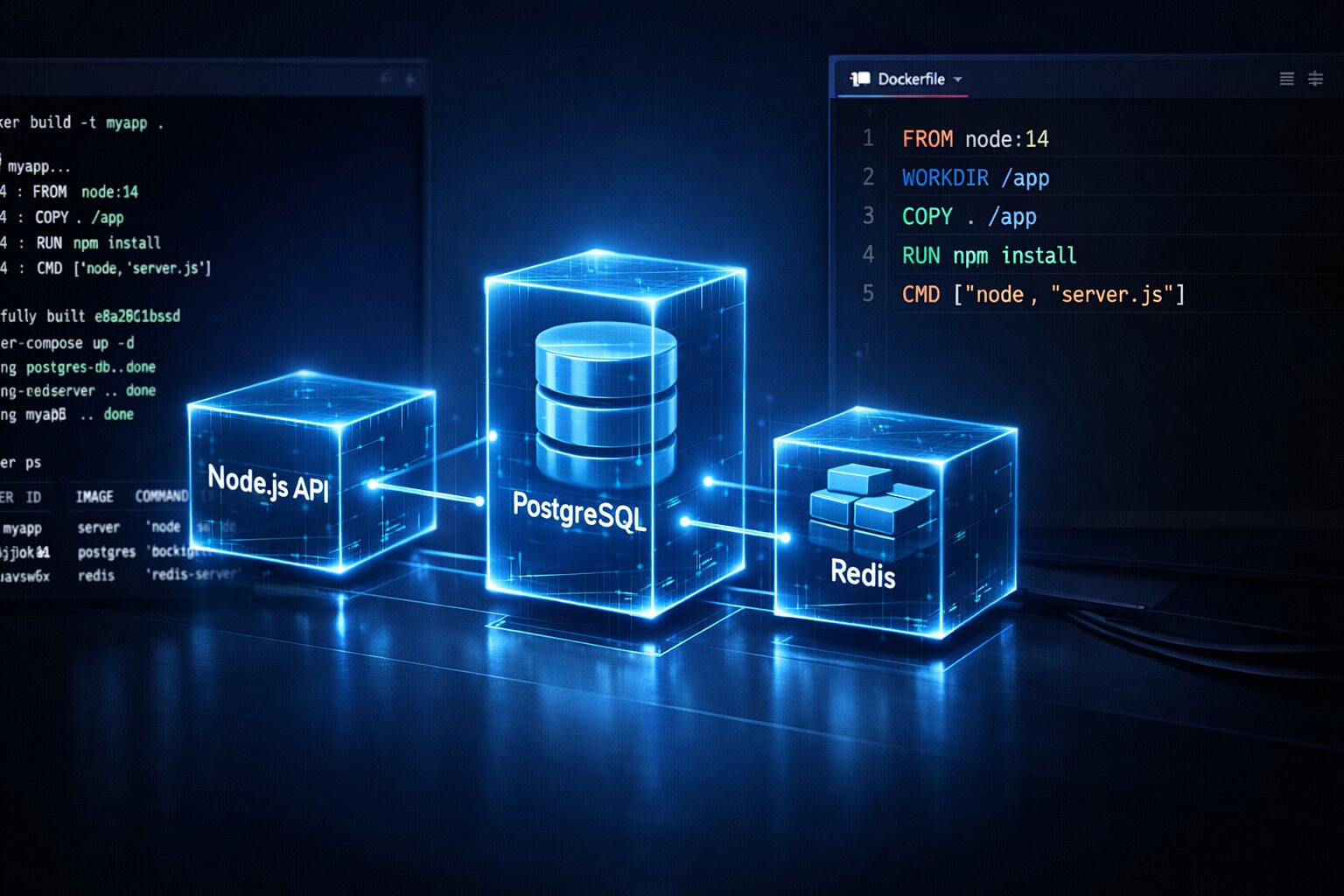
A Docker image is built from a Dockerfile. The Dockerfile is a set of instructions that starts from a base image, adds your code, installs dependencies, and defines what command runs when a container starts. Here is a Dockerfile for a basic Node.js application:
FROM node:22-alpine

WORKDIR /app

COPY package*.json ./

RUN npm ci --only=production

COPY . .

EXPOSE 3000

CMD ["node", "server.js"]
That is 9 lines and it covers a deployable Node.js server. The node:22-alpine base image is a minimal Linux distribution with Node 22 pre-installed. Alpine is small, around 5MB for the base, compared to the Debian-based node:22 which is around 350MB. For production images, you want small.
The COPY package*.json ./ followed by RUN npm ci before copying the rest of the source code is intentional. Docker builds images in layers. Each instruction is a layer. If you change a layer, Docker invalidates all layers after it. If you copy your source code first and then run npm ci, every single code change forces a full npm install. By copying package.json first and installing before copying source code, you only re-run npm ci when your dependencies actually change. For a project with 300 dependencies, this is the difference between a 3-second rebuild and a 90-second one.
Multi-Stage Builds and Why They Matter for JavaScript Applications
TypeScript projects and Next.js apps have a build step. You compile TypeScript down to JavaScript. Next.js generates a .next folder. The tools you need to build are not the tools you need to run. Multi-stage builds let you use a heavy build environment and then copy only the output into a lean runtime image.
# Stage 1: Build
FROM node:22-alpine AS builder

WORKDIR /app

COPY package*.json ./
RUN npm ci

COPY . .
RUN npm run build

# Stage 2: Production
FROM node:22-alpine AS runner

WORKDIR /app

ENV NODE_ENV=production

COPY --from=builder /app/package*.json ./
RUN npm ci --only=production

COPY --from=builder /app/.next ./.next
COPY --from=builder /app/public ./public

EXPOSE 3000

CMD ["node_modules/.bin/next", "start"]
The final image contains only the production dependencies and the compiled output. The TypeScript compiler, the dev dependencies, and the intermediate build files never make it into the image you ship. For a typical Next.js app, this reduces the image size from 800MB to around 200MB. Smaller images mean faster deploys, smaller attack surface, and lower bandwidth costs when pulling images on every server node.
For developers building production Next.js applications, this pattern is part of shipping applications that actually scale.
Docker Compose for Local JavaScript Development
Docker alone solves the deployment problem. Docker Compose solves the local development problem. Most JavaScript applications do not run in isolation. They connect to a database, maybe a Redis instance, maybe a message queue. Getting all of those services running locally, on the right versions, without conflicts across different projects, is where Docker Compose becomes essential.
Docker Compose lets you define an entire multi-service environment in a single YAML file and start it with one command. Here is a docker-compose.yml for a Node.js API with PostgreSQL and Redis:
version: '3.9'

services:
  api:
    build: .
    ports:
      - "3000:3000"
    environment:
      DATABASE_URL: postgresql://user:password@db:5432/myapp
      REDIS_URL: redis://cache:6379
      NODE_ENV: development
    volumes:
      - .:/app
      - /app/node_modules
    depends_on:
      db:
        condition: service_healthy
      cache:
        condition: service_started

  db:
    image: postgres:16-alpine
    environment:
      POSTGRES_USER: user
      POSTGRES_PASSWORD: password
      POSTGRES_DB: myapp
    ports:
      - "5432:5432"
    volumes:
      - postgres_data:/var/lib/postgresql/data
    healthcheck:
      test: ["CMD-SHELL", "pg_isready -U user -d myapp"]
      interval: 5s
      timeout: 5s
      retries: 5

  cache:
    image: redis:7-alpine
    ports:
      - "6379:6379"

volumes:
  postgres_data:
docker compose up starts all three services. docker compose up --build rebuilds the API image first. docker compose down -v stops everything and removes the volumes. Every developer on the team runs docker compose up and gets the exact same environment. No "I forgot to run the migration." No "my PostgreSQL is version 14, yours is 16." The YAML is the documentation.
Development Volumes and Hot Reload in Docker
One thing that trips up JavaScript developers when they first use Docker for development is hot reload. By default, a container runs a snapshot of your code. If you edit a file, the container does not know about it. You would have to rebuild the image on every change, which is unusable.
The solution is volumes. In the Compose file above, the volumes section for the API service mounts the current directory (.) to /app inside the container. Your code editor writes files to your machine. The container sees those changes in real time through the volume mount. Nodemon, webpack watch mode, Next.js fast refresh: all of these work as normal inside the container because they are watching the same files your editor is writing.
The second volume entry, /app/node_modules, is important. Without it, the container's node_modules directory gets overwritten by your host machine's volume mount. If your host is macOS and the container is Linux, some native modules will break. The empty /app/node_modules volume tells Docker to keep the container's own node_modules separate from the volume mount.
Environment Variables and Secrets Management
The environment block in Docker Compose is fine for development. For production, you do not want passwords in YAML files committed to your repository. The standard pattern uses a .env file with Docker Compose's built-in .env support, or a secrets manager like AWS Secrets Manager or HashiCorp Vault mounted at runtime.
For development, a .env file works well:
# .env (add to .gitignore)
POSTGRES_USER=user
POSTGRES_PASSWORD=localdevpassword
POSTGRES_DB=myapp
# docker-compose.yml
services:
  db:
    image: postgres:16-alpine
    env_file:
      - .env
The env_file directive reads from .env and injects all variables as environment variables in the container. Keep .env out of version control. Commit a .env.example with placeholder values instead. This is a basic web security practice that AI-generated code regularly gets wrong, which is part of why 96% of developers in recent surveys say they do not fully trust AI-generated code in production.
Debugging Node.js Applications Inside Docker Containers
This is where most JavaScript developers give up on Docker. Something works locally without Docker. Inside Docker, it breaks. The error message is unhelpful. They disable Docker and go back to running things locally.
The problem is not Docker. The problem is not knowing the handful of commands that let you inspect what is happening inside a container.
docker logs [container_id] shows stdout and stderr from the container. docker logs -f [container_id] follows the logs in real time, like tail -f. This should be your first stop when something is wrong.
docker exec -it [container_id] sh opens an interactive shell inside the running container. From there you can inspect the filesystem, check environment variables with env, run node -e "console.log(process.env)" to see what your application actually sees, or run curl to test internal network connections between services.
# Find running containers
docker ps

# Open a shell in your API container
docker exec -it my_project_api_1 sh

# Inside the container
ls -la /app
env | grep DATABASE
node -e "require('./src/db')"
If your container exits immediately, docker ps -a shows stopped containers. docker logs [container_id] on a stopped container shows the last output before it crashed. Nine times out of ten, a container that exits immediately has a missing environment variable or a configuration error that becomes obvious the moment you read the logs.
Node.js Debugging with Chrome DevTools Inside Docker
The V8 inspector works inside Docker. You just need to expose the debug port. In your docker-compose.yml, change the API service command for development:
services:
  api:
    command: node --inspect=0.0.0.0:9229 server.js
    ports:
      - "3000:3000"
      - "9229:9229"
The 0.0.0.0 binding is important. By default, --inspect binds to 127.0.0.1, which is the container's localhost, not your host machine's localhost. Binding to 0.0.0.0 makes the debug port accessible from outside the container. Then open chrome://inspect in Chrome, click "Configure," add localhost:9229, and your Node.js process appears as a remote target. Full breakpoints, call stack inspection, memory profiling: everything works.
This is useful for debugging Node.js memory leaks that only manifest under sustained load, which is exactly the kind of bug that only shows up in staging or production environments.
Docker in CI/CD for JavaScript Projects
The real payoff of Docker knowledge is what it enables in your CI/CD pipeline. When your application is a Docker image, your CI system builds the image once, runs tests against it, and pushes the same image to production. The artifact that gets tested is the artifact that gets deployed. Not "we ran tests on the source code and then built a different artifact for production." The same image.
GitHub Actions with Docker looks like this:
# .github/workflows/deploy.yml
name: Build and Deploy

on:
  push:
    branches: [main]

jobs:
  build:
    runs-on: ubuntu-latest

    steps:
      - uses: actions/checkout@v4

      - name: Set up Docker Buildx
        uses: docker/setup-buildx-action@v3

      - name: Login to Docker Hub
        uses: docker/login-action@v3
        with:
          username: ${{ secrets.DOCKERHUB_USERNAME }}
          password: ${{ secrets.DOCKERHUB_TOKEN }}

      - name: Build and push
        uses: docker/build-push-action@v5
        with:
          context: .
          push: true
          tags: myusername/myapp:${{ github.sha }},myusername/myapp:latest
          cache-from: type=gha
          cache-to: type=gha,mode=max
The cache-from and cache-to lines use GitHub Actions cache to store Docker layer cache between builds. Without this, every CI run rebuilds the entire image from scratch. With it, unchanged layers are pulled from cache. For a typical Next.js application, this reduces CI build time from 4 minutes to 45 seconds.
The github.sha tag gives every build a unique, traceable tag. If something goes wrong in production, you can pull the exact image that was deployed and run it locally. That traceability is worth a lot when you are debugging a production incident.
Running JavaScript Tests Inside Docker
Your test suite should run inside the same Docker image that runs in production. This catches a class of bugs where tests pass locally but fail in CI or production because of system-level differences.
# In your docker-compose.yml
services:
  test:
    build:
      context: .
      target: builder
    command: npm test
    environment:
      DATABASE_URL: postgresql://user:password@db:5432/test_db
      NODE_ENV: test
    depends_on:
      db:
        condition: service_healthy
Running docker compose run --rm test spins up the test database, runs your test suite inside the builder image, and removes the container when done. Your CI pipeline runs the same command. If tests pass in docker compose run --rm test locally, they will pass in CI.
For testing JavaScript applications, the patterns for writing tests that are worth running are covered in detail in the JavaScript testing guide for 2026.
Docker Security Practices JavaScript Developers Actually Need to Know
Security is where most Docker tutorials stop too early. A running container with a vulnerable configuration is worse than no container at all, because it creates a false sense that things are isolated when they are not.
The single most important Docker security practice for JavaScript developers: do not run your Node.js process as root inside the container. The default is root. If someone exploits a vulnerability in your application, they are root inside the container. Depending on your container configuration, that can mean root on the host.
FROM node:22-alpine

WORKDIR /app

COPY package*.json ./
RUN npm ci --only=production

COPY . .

# Create a non-root user
RUN addgroup -g 1001 -S nodejs
RUN adduser -S nextjs -u 1001

# Set ownership
RUN chown -R nextjs:nodejs /app

# Switch to non-root user
USER nextjs

EXPOSE 3000

CMD ["node", "server.js"]
The USER nextjs instruction means every command after it, including the running application, executes as the nextjs user with UID 1001. Not root.
Second: scan your images. Docker Scout and Trivy both detect known CVEs in your base image and installed packages. Adding trivy image myapp:latest to your CI pipeline takes 30 seconds and catches vulnerabilities that would take a security audit to find manually. AI-generated Dockerfiles have a specific problem here: they often use outdated base images or install unnecessary packages. Running a scan catches this automatically.
Third: use specific image tags, never latest. FROM node:latest pins to whatever "latest" means at build time. In three months, node:latest might be a different major version. Use FROM node:22-alpine and update deliberately when you choose to.
What Docker Knowledge Signals to Interviewers in 2026
The market context matters here. With AI writing code faster than ever, interviewers are looking for signals that a developer understands systems, not just syntax. Docker knowledge is one of those signals because it requires understanding how operating systems work, how networking works, how processes communicate, and how to think about isolation and security.
When a developer can talk about multi-stage builds, explain why they copy package.json before source code, describe how they debug a container that exits immediately, and discuss the security implications of running as root, that is a developer who has actually operated software in production. That profile is not replaceable by an AI tool that generates code and hands it over.
The research from METR published this week is telling: AI tools are now speeding up developers who know what they are doing. They are also generating more code for developers who do not understand the environments that code runs in. The infrastructure gap between those two groups is widening, not narrowing.
From looking at jsgurujobs.com listings, Docker shows up in take-home assignments more often now too. A company will give you a Node.js application with a bug in it and ask you to containerize it, add a test, and set up a GitHub Actions workflow. Three years ago that was a DevOps test. Now it is a senior full-stack test.
If you are mid-level trying to break through to senior, understanding what actually separates mid-level from senior JavaScript developers consistently comes back to system ownership. Docker is a concrete, learnable way to demonstrate that ownership.
Docker for Next.js and Full-Stack JavaScript Applications
Next.js has its own Docker considerations because of how it handles builds, static assets, and server-side rendering. The Next.js team publishes an official Dockerfile example that uses standalone output mode. This is worth understanding.
In your next.config.js:
/** @type {import('next').NextConfig} */
const nextConfig = {
  output: 'standalone',
}

module.exports = nextConfig
The standalone output mode traces which files are actually used by your Next.js app and includes only those in a /.next/standalone folder. For a typical mid-size Next.js application, this reduces the deployment artifact from 800MB to around 100-150MB. The full Dockerfile for a production Next.js app with standalone output looks like this:
FROM node:22-alpine AS base

# Stage 1: Install dependencies
FROM base AS deps
RUN apk add --no-cache libc6-compat
WORKDIR /app
COPY package*.json ./
RUN npm ci

# Stage 2: Build
FROM base AS builder
WORKDIR /app
COPY --from=deps /app/node_modules ./node_modules
COPY . .

ENV NEXT_TELEMETRY_DISABLED 1

RUN npm run build

# Stage 3: Production runner
FROM base AS runner
WORKDIR /app

ENV NODE_ENV production
ENV NEXT_TELEMETRY_DISABLED 1

RUN addgroup --system --gid 1001 nodejs
RUN adduser --system --uid 1001 nextjs

COPY --from=builder /app/public ./public

RUN mkdir .next
RUN chown nextjs:nodejs .next

COPY --from=builder --chown=nextjs:nodejs /app/.next/standalone ./
COPY --from=builder --chown=nextjs:nodejs /app/.next/static ./.next/static

USER nextjs

EXPOSE 3000

ENV PORT 3000
ENV HOSTNAME "0.0.0.0"

CMD ["node", "server.js"]
Three stages: install dependencies, build, run. The final image contains only the standalone output and static files. No source code. No build tools. No node_modules beyond what the standalone output bundles in. This Dockerfile ships a Next.js app that starts in under 2 seconds and takes 100-150MB of disk space.
Handling Environment Variables in Next.js Docker Builds
Next.js bakes some environment variables into the client-side bundle at build time. Variables prefixed with NEXT_PUBLIC_ get embedded in the JavaScript that runs in the browser. This creates a tension with Docker: if you build the image once and deploy it to multiple environments, the NEXT_PUBLIC_ variables are already baked in.
There are two solutions. The first is to build a separate image per environment, passing build-time ARGs:
ARG NEXT_PUBLIC_API_URL
ENV NEXT_PUBLIC_API_URL=$ARG_NEXT_PUBLIC_API_URL
RUN npm run build
docker build --build-arg NEXT_PUBLIC_API_URL=https://api.production.com -t myapp:prod .
The second is to avoid NEXT_PUBLIC_ variables for anything environment-specific and handle API URL configuration server-side, passing it to the client as props. This is architecturally cleaner and is what most large Next.js codebases eventually converge on.
Docker Networking and How JavaScript Services Talk to Each Other
When you have multiple services running in Docker Compose, they communicate over a virtual network that Docker creates automatically. From inside the api container, you reach the database at the hostname db, not at localhost. This is the most common point of confusion for JavaScript developers new to Docker.
localhost inside a container means the container itself. Not your host machine. Not another container. The container. When your Node.js app tries to connect to localhost:5432 for PostgreSQL, it is looking for PostgreSQL inside the same container, not in the db service. It will not find anything and it will fail.
Docker Compose services reach each other by service name. In the Compose file, you have a service called db. Your connection string is postgresql://user:password@db:5432/myapp. The string db resolves to the IP of the db container on the Docker network.
// This works inside Docker
const pool = new Pool({
  connectionString: process.env.DATABASE_URL,
  // DATABASE_URL=postgresql://user:password@db:5432/myapp
})

// This does NOT work inside Docker if PostgreSQL is in a separate service
const pool = new Pool({
  host: 'localhost',
  port: 5432,
})
When you need to connect to a service from your host machine for local development, you expose ports. The ports: "5432:5432" mapping in the db service means your host machine's port 5432 forwards to the container's port 5432. Your local database GUI connects to localhost:5432 and reaches the container.
Docker for Prisma, Drizzle and Database Migrations in Containerized Applications
Database migrations in a containerized environment trip up JavaScript developers who are used to running npx prisma migrate dev directly from their terminal. Inside Docker, the database is a separate service and the migration tool needs to connect to it. The question is when and where migrations run.
There are two approaches. The first is a dedicated migration service that runs before the API starts:
services:
  migrate:
    build: .
    command: npx prisma migrate deploy
    environment:
      DATABASE_URL: postgresql://user:password@db:5432/myapp
    depends_on:
      db:
        condition: service_healthy

  api:
    build: .
    command: node server.js
    environment:
      DATABASE_URL: postgresql://user:password@db:5432/myapp
    depends_on:
      migrate:
        condition: service_completed_successfully
      db:
        condition: service_healthy
The service_completed_successfully condition means Docker Compose waits for the migrate container to exit with code 0 before starting the api container. If the migration fails, the API never starts. This is safer than running migrations inside the application startup code, because it surfaces migration failures before they become runtime errors.
The second approach runs migrations as part of the application startup script:
#!/bin/sh
# entrypoint.sh
set -e

echo "Running database migrations..."
npx prisma migrate deploy

echo "Starting application..."
exec node server.js
COPY entrypoint.sh .
RUN chmod +x entrypoint.sh
CMD ["./entrypoint.sh"]
The exec before node server.js is important. It replaces the shell process with the Node.js process, which means Node.js runs as PID 1 and receives OS signals directly. Without exec, the shell is PID 1, signals like SIGTERM get sent to the shell, and your application does not shut down cleanly.
For Drizzle ORM, the pattern is identical but with npx drizzle-kit migrate or your Drizzle migration command. The underlying principle is the same: migrations run before the application, not inside it, and migration failures are loud rather than silent.
This is relevant to how you architect the data layer. The choices you make between Prisma and Drizzle affect how migrations integrate with your Docker setup, and the tradeoffs extend beyond syntax into deployment behavior.
Docker Image Optimization for JavaScript Applications
Image size affects three things in practice: how fast your CI pipeline pushes new images to a registry, how fast your production servers pull new images during a deploy, and how much you pay for container registry storage. Most JavaScript developers never think about this until they have 50GB of images in their registry and a 4-minute deploy time.
The biggest wins come in order. First, use Alpine-based images. node:22-alpine is around 50MB. node:22 is around 350MB. Multiply that by fifty builds a week and the difference in registry bandwidth adds up quickly.
Second, use .dockerignore. Without it, Docker copies everything in your project directory into the build context, including node_modules, .git, test fixtures, and anything else that is sitting around. A .dockerignore file works like .gitignore:
node_modules
.git
.next
*.log
coverage
.env
.env.*
!.env.example
dist
A typical Next.js project without .dockerignore has a build context of 500MB to 1GB because of node_modules. With .dockerignore, the build context is under 1MB. Docker sends the entire build context to the Docker daemon before building. Without .dockerignore, you wait 30 seconds before the first build instruction runs.
Third, minimize the number of layers in your final stage. Each RUN, COPY, and ADD instruction creates a layer. Multiple RUN commands that do related things can be combined with &&:
RUN apk add --no-cache curl \
    && addgroup -g 1001 -S nodejs \
    && adduser -S nextjs -u 1001
One layer instead of three. For the production stage of a multi-stage build, fewer layers means a smaller image because Docker cannot optimize away layers that are separate instructions.
Fourth, if you use npm, make sure you are running npm ci not npm install in Docker. npm ci installs exactly what is in package-lock.json, does not update the lockfile, and is significantly faster in clean environments like container builds. It also fails if package.json and package-lock.json are out of sync, which catches a class of "why is this package version different in prod" bugs before they ship.
The Docker Commands You Will Actually Use Every Day
Most Docker tutorials cover thirty commands. You will use about eight of them consistently. Here are the ones that matter:
docker compose up -d starts all services in the background. The -d flag detaches from the terminal.
docker compose down stops and removes containers. docker compose down -v also removes named volumes, which wipes your database data. Useful when you want a clean slate. Dangerous if you forget the -v.
docker compose logs -f api follows the logs for a specific service. Watching logs from one service instead of all of them at once is much easier to read during development.
docker compose exec api sh opens a shell in the running api container without creating a new container. Different from docker run, which creates a new container from the image.
docker build -t myapp:local . builds an image and tags it myapp:local. The . at the end tells Docker to look for a Dockerfile in the current directory.
docker images lists all local images. docker image prune removes dangling images, those untagged images that pile up when you rebuild without changing the tag. They consume disk space.
docker system prune -a removes everything: stopped containers, unused images, build cache. Use this when Docker has consumed 20GB of disk space and you need it back. You will rebuild from scratch after.
How to Add Docker to a JavaScript Project That Does Not Have It
If you are working on an existing project without Docker and want to add it, the order of operations matters.
Start with the development environment. Write a docker-compose.yml that matches what the project currently needs to run locally. If it uses PostgreSQL 14, use postgres:14-alpine. Match the existing environment exactly before you change anything.
Test that docker compose up starts all services and the application runs correctly. Fix every issue before moving to the Dockerfile. Debugging a new Dockerfile and a new Docker Compose setup at the same time doubles the surface area for problems.
Once the local environment works, write the Dockerfile for production. Use the multi-stage pattern from the beginning even if it feels like overkill. Add it to CI. Run the test suite inside Docker. When tests pass in Docker, the environment is validated.
Do not add Kubernetes yet. Kubernetes is the orchestration layer you add when you have multiple production servers and need automated scaling. Most JavaScript projects never need it. Most developers who try to learn Docker and Kubernetes together give up because Kubernetes adds significant conceptual overhead. Docker Compose in development, Docker on a single server or managed container service in production: that covers 90% of what JavaScript developers actually need.
The Infrastructure Gap Is Not Closing on Its Own
The data from the last two days in the JavaScript developer community points in one direction: the bar is higher, the teams are smaller, and the developers who survive layoffs and get hired in a competitive market are the ones who can own more of the stack. Silent layoffs at Citi, restructuring at WiseTech, hiring freezes across mid-sized tech companies: these are not temporary conditions. They are the new shape of the industry.
Ninety-six percent of developers in recent surveys say they do not fully trust AI-generated code in production. That distrust is well-founded, but the developers who benefit from it are the ones who understand what "production" actually looks like. An AI tool can write a Dockerfile. It regularly writes Dockerfiles that run as root, use outdated base images, skip multi-stage builds, and expose debug ports in production configs. If you cannot read that Dockerfile and know it is wrong, you are shipping the AI's mistake.
Docker is not a complex technology. The core concepts fit in a weekend of hands-on practice. What takes longer is developing the instincts, knowing which patterns matter, which warnings to take seriously, how to read a broken container's logs and fix the problem without stack overflow. Those instincts come from using it on real projects, not from reading about it.
The senior developers I see getting hired right now are not necessarily better at JavaScript than the mid-level developers getting passed over. They understand their deployment environment. They can set up a project from scratch. They know what happens between git push and the request hitting production. Docker is the most accessible entry point into that understanding, and it is the entry point most JavaScript developers are still standing outside of.
Start with docker compose up on your current project this week. The first hour will be frustrating. The second hour you will understand more about your application than you did the day before.
If you want to stay ahead of changes in the JavaScript ecosystem and see which skills are actually showing up in job postings, I share production patterns and market data weekly at jsgurujobs.com.
FAQ
Do JavaScript developers actually need Docker or is it a DevOps thing?
It was a DevOps thing in 2020. In 2026, it is a full-stack thing. Most senior JavaScript roles now expect you to write a Dockerfile, run services locally with Docker Compose, and understand CI pipelines that build and push Docker images. Teams are smaller and the expectation is that a single developer can take a feature from code to deployed container without handing off to a separate ops team.
What is the fastest way to learn Docker as a JavaScript developer?
Take your current project, whatever you are working on, and Dockerize it. Write a docker-compose.yml that starts your application and its dependencies. Write a Dockerfile that builds a production image. Break it, fix it, break it again. Official documentation from Docker and the Node.js Docker best practices guide are both current and accurate. Two days of hands-on work on a real project teaches more than a week of tutorials.
Why does my Node.js app run fine locally but crash inside Docker?
The three most common causes are: a missing environment variable that your app requires at startup, a connection string using localhost instead of the Docker Compose service name, or a native module that was compiled for macOS and does not work on Linux. Run docker logs [container_name] to read the crash output. The error message is almost always specific enough to point directly at the cause.
Is Docker Compose enough for production or do I need Kubernetes?
Docker Compose is not typically used for production deployment. For production, most JavaScript developer teams use a managed container service like AWS ECS, Google Cloud Run, Fly.io, or Railway. These services run Docker containers without requiring you to manage Kubernetes clusters. Kubernetes makes sense at scale, when you have multiple services, complex traffic routing, and a dedicated platform team. For a solo developer or small team shipping a JavaScript application, a managed container service plus Docker Compose for local development is the right stack.
📧 Subscribe to JS Pulse
The JavaScript job market in one email: real numbers from 600+ job listings, 5 jobs worth applying to, and what actually changed. Join 9,000+ developers.
Share this article